Office party photos in one private album
Updated on 5 November 2026 · 4 min read
In short
Open a private album for the event, share it by QR code on site, and decide in advance who sees the photos, when, and who can remove them. Staff take photos with their phones, with no app or account. For data protection, check where the photos are stored, how long they are kept, and whether everyone knows the rules before their first photo.
Why it's trickier than a wedding
As elsewhere, photos stay on phones or circulate in private chats. A work setting adds its own questions:
- not every participant wants to appear in shared photos;
- a photo taken at midnight has no place in the company's communications;
- HR, communications or IT ask where the photos go, and for how long.
A shared folder or a chat group solves none of these. You need one private album, with rules everyone knows.
Before the event: three decisions to make
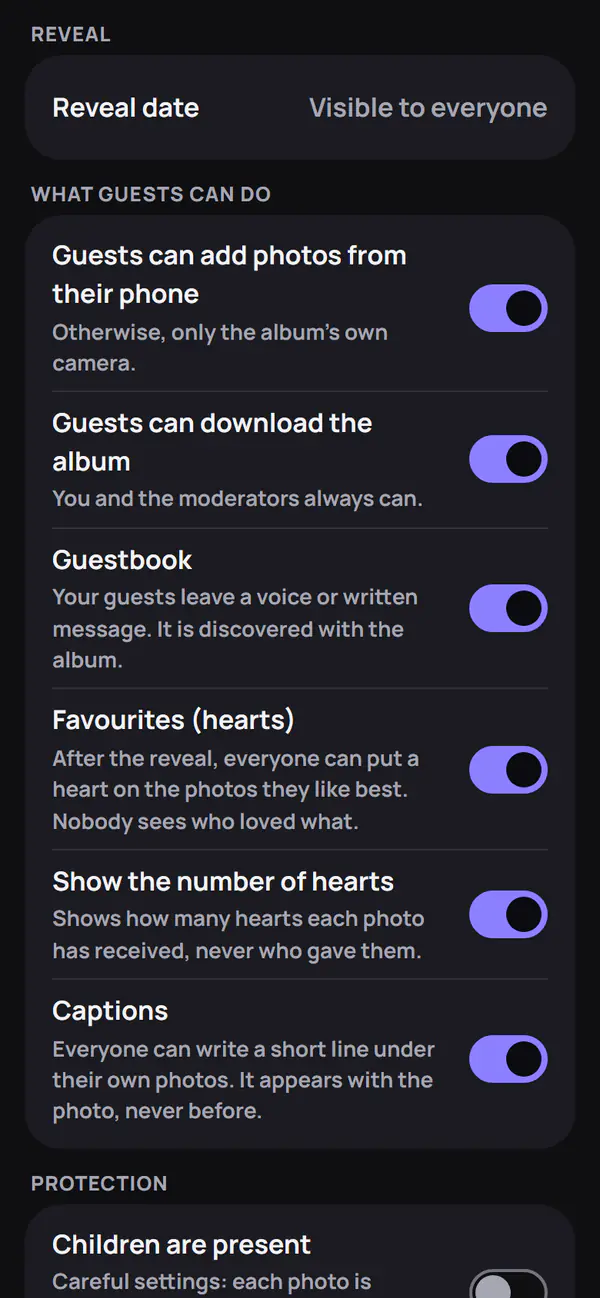
Who sees the photos, and when. In Live mode, everyone sees the others' photos as soon as they arrive, and the photo wall in the room fills up during the evening. With a delayed reveal, each participant sees only their own photos until the set time, for example the next morning.
Who checks. With checking before publication, each photo waits for a moderator's approval before others can see it. You can appoint several, in communications, HR or management; they don't count as guests.
How long the album is kept. It is deleted on the planned date, after an email reminder seven days before, so you can download what you want to keep.
These settings can still be changed after the album is created.
Data protection, without the jargon
We don't claim any certification, and no tool on its own makes an event “compliant”. Here are the facts to pass on to your data protection officer:
- photos, database and backups are stored in Switzerland, with Infomaniak;
- no facial recognition, and no artificial intelligence applied to photos or voice messages;
- participants aren't asked for an account or email address, a first name is optional, and the album is never indexed by search engines;
- everyone accepts the album rules before their first photo, including the commitment not to repost other people's photos elsewhere without their consent.
The rules are public on the Album rules page: you can send them out before the event. To use a photo in external communications, always ask the people in it for their consent.
Everyone's right to their own image
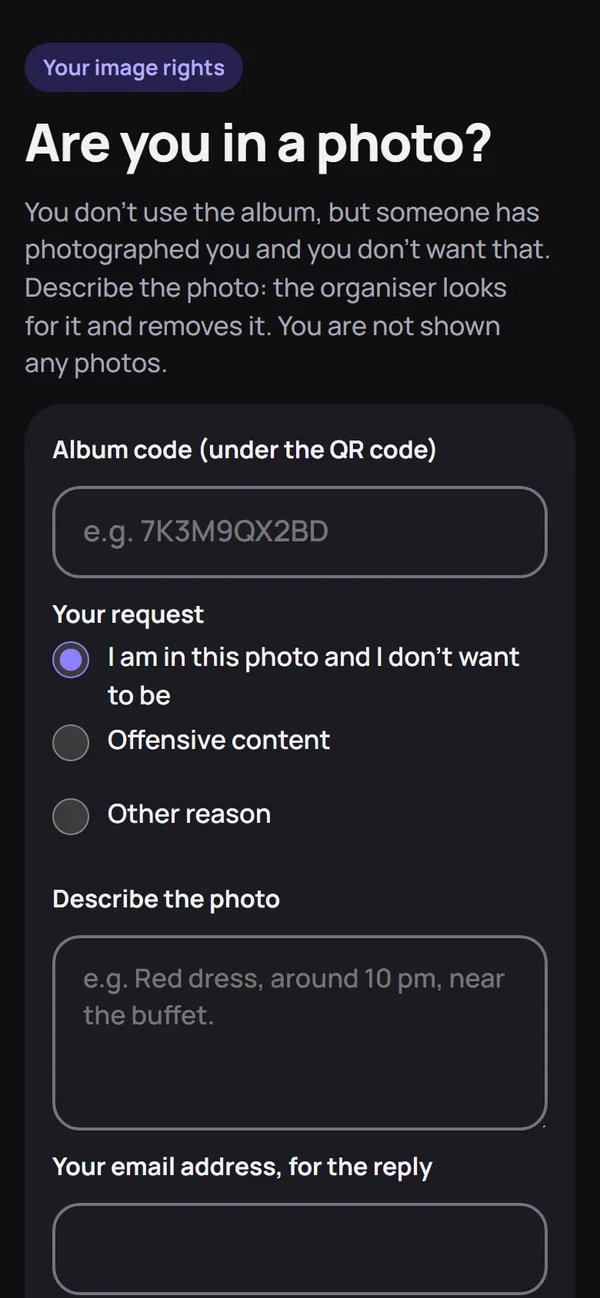
A participant who doesn't want to appear in a photo reports it from the album: it is hidden immediately, and the organiser, notified by email, decides. Someone without the QR code, a supplier for example, can also request a removal. Everyone can delete their own photos at any time.
Mention this at the start of the event: people take part more readily when they know they can change their mind.
During the event: getting people involved
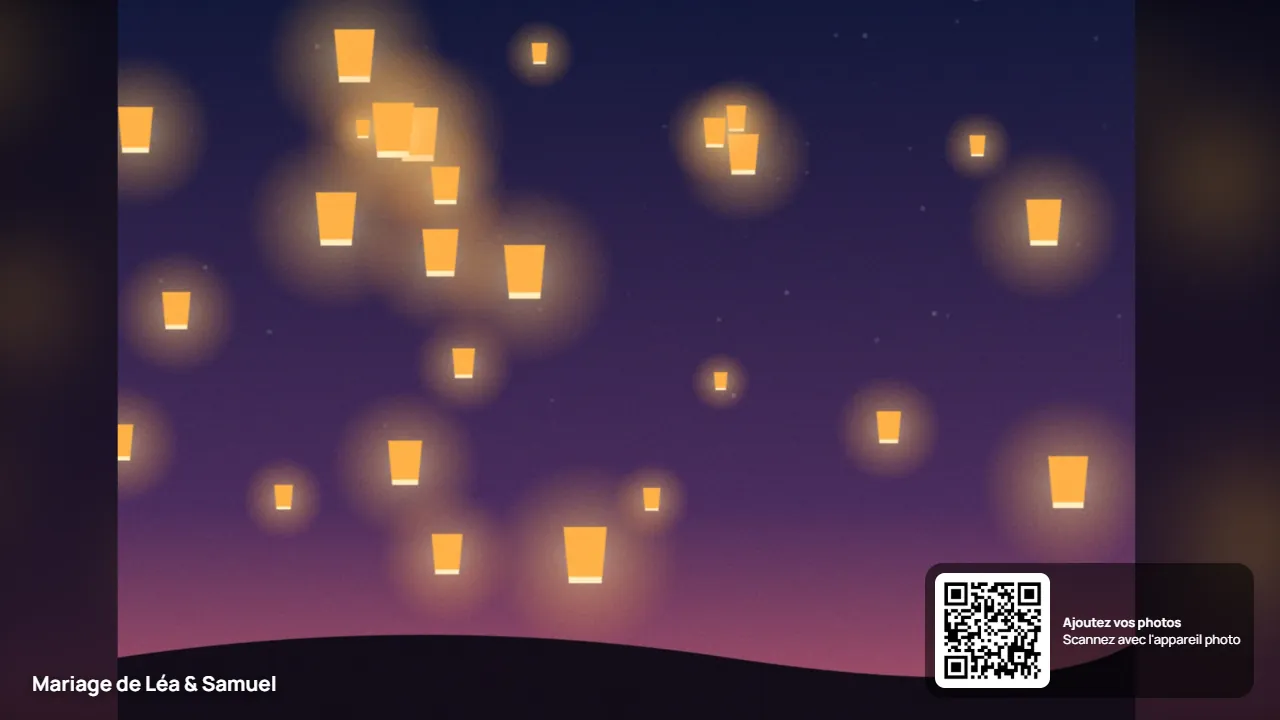
Make the QR code visible: a poster at the entrance, a table card on each table, or one code per area. Each code can have its own name, an expiry date and a maximum number of people.
At a seminar or team event, photo challenges (“the whole team in one photo”) and the secret mission drawn at random on arrival push people towards colleagues they barely know. At a party or a launch, the photo wall shows the album filling up, or a countdown before the reveal.
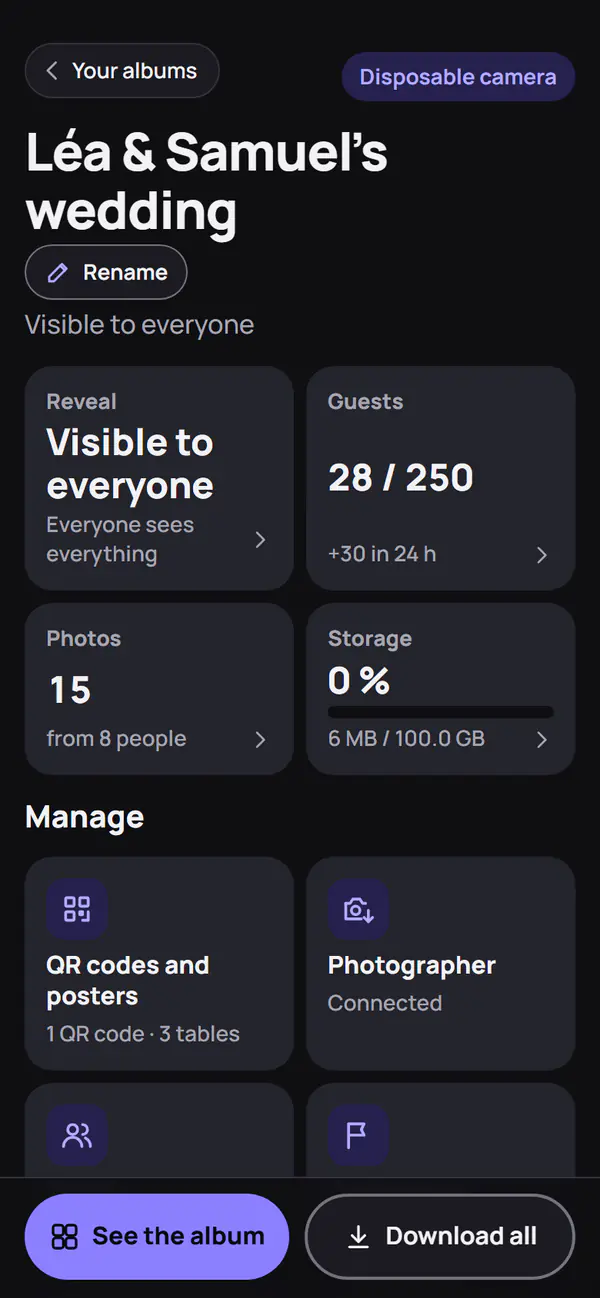
During the event, the dashboard shows guests joined, photos received and photos to check.
Afterwards: handing over the album
At the chosen time, the album opens for all participants: each one reopens it on the phone they used during the event, and you tap “See the album” in your space. Moderators can download the whole album in one go, in full quality; participants can too, if you allow it. Then, with the consent of the people concerned, choose the photos for internal communications.
Paid plans let you extend storage. Otherwise, the album is deleted on the planned date.
What it costs
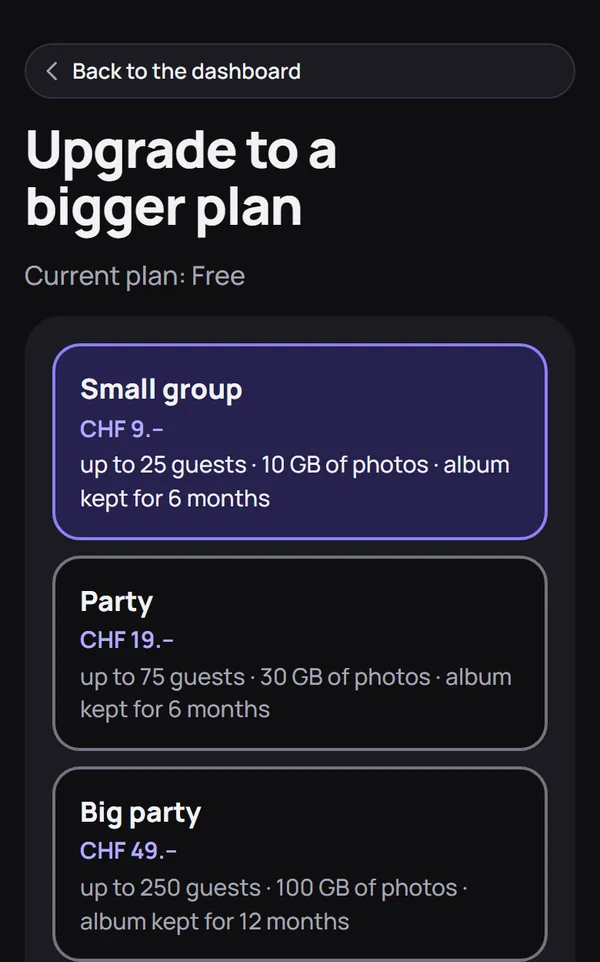
An album is free for up to 10 participants, enough to test it with a few colleagues before the event. Plans per event range from CHF 9.– to CHF 49.–. For companies and agencies, the Business plan is on quotation, from CHF 290.–, for up to 1000 participants. Details on the Companies page.
Event agencies, caterers, hotels: the Partners page explains how to offer the album to your clients. All features are on the Features page.