QR code for wedding photos: how it works
Updated on 5 November 2026 · 4 min read
In short
The QR code on the tables opens a private online album. The guest scans it with their phone's camera, the album opens in the browser, with no app to install, and they take photos or choose some from their camera roll. Everything arrives in the same place. The couple decide when the photos are revealed: live during the party, or all together the next day.
What's behind the QR code
A QR code is a web address printed as an image. Recent phones read it with their camera: you point at the code, a link appears, you tap it.
For a wedding, that link should lead to a closed album, for people who have the code. In Festiroll, the album is never indexed by search engines: only guests who scan the QR code can get in.
For guests: thirty seconds to get started
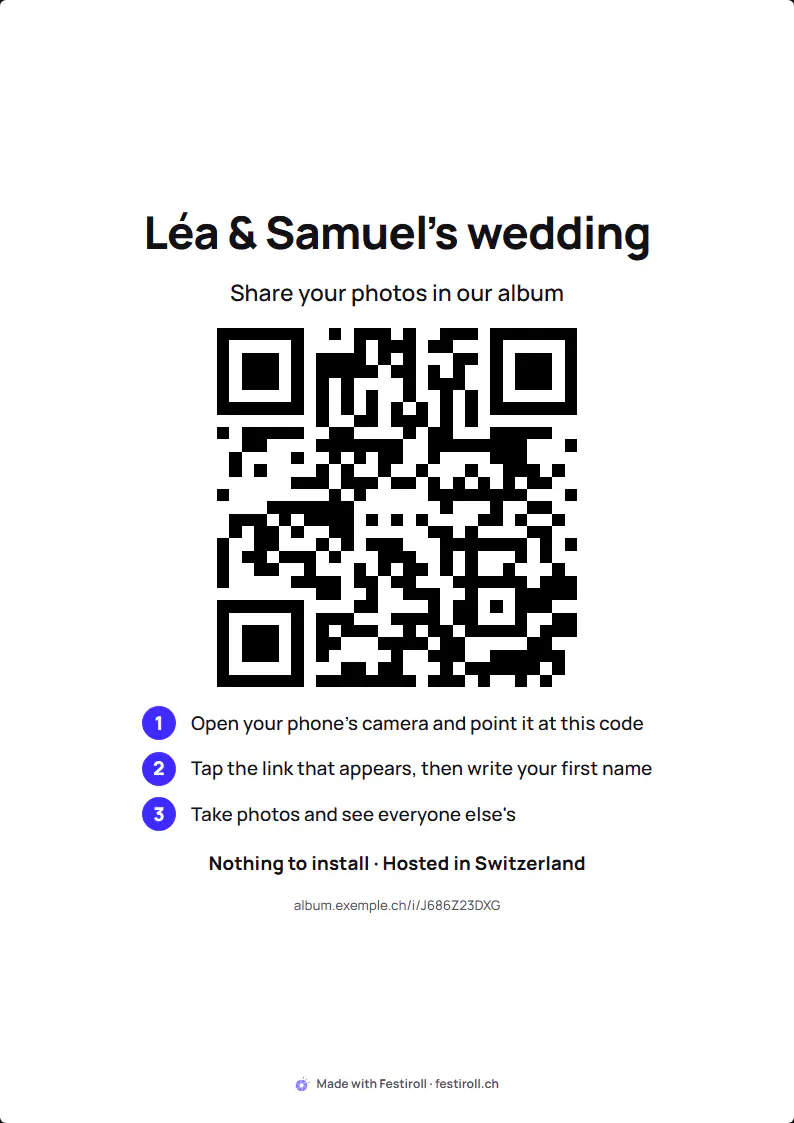
The guest:
- scans the QR code on their table;
- sees the album open in their browser, on iPhone or Android;
- gives a first name if they wish and accepts the album rules;
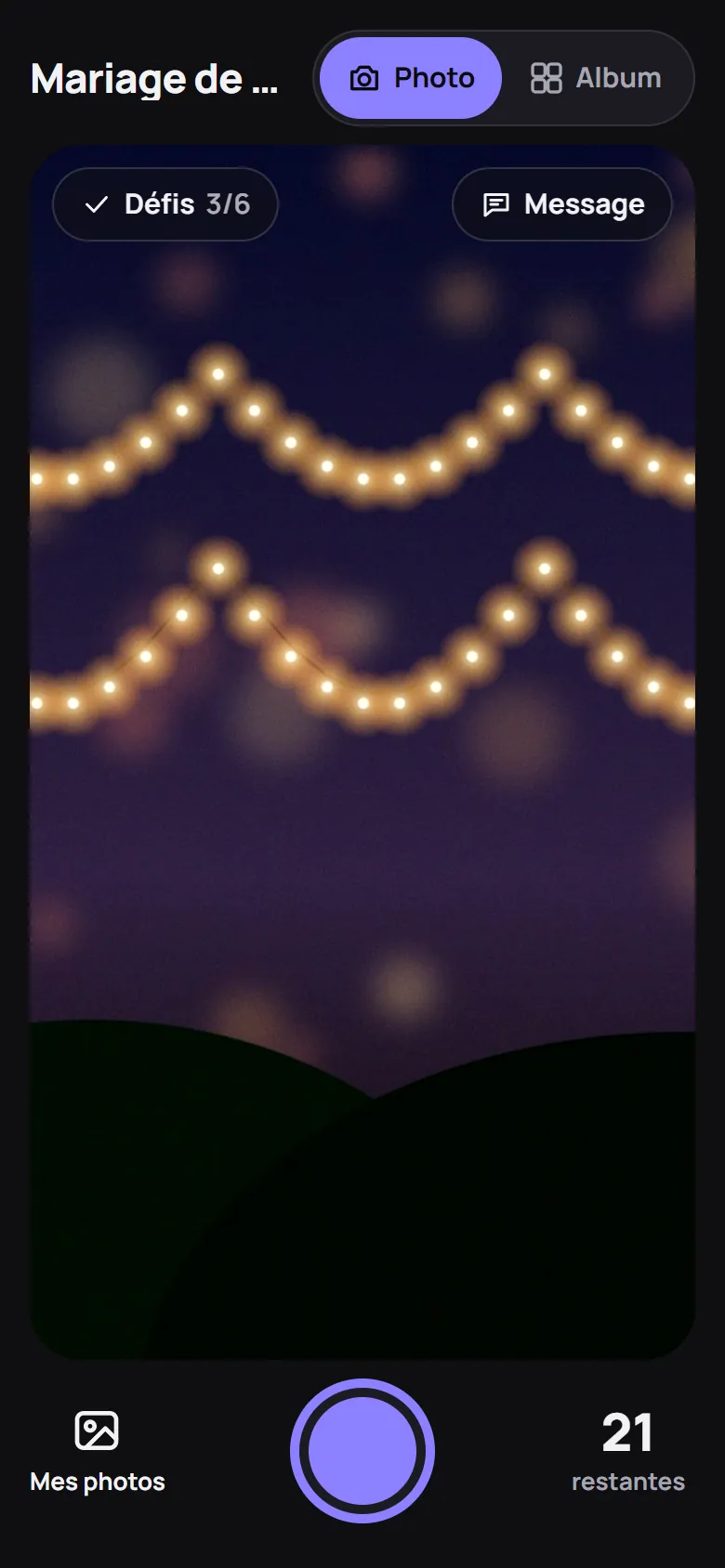
- takes photos from the page, or chooses photos from their camera roll.
There's no email address to give, no account, no password. So guests who aren't comfortable with their phones can take part too. The album can be added to the home screen and opened full screen, but this isn't necessary.
For the couple: setting up the QR code
Allow a few minutes to:
- create the album with an email address (you receive a sign-in link, no password);
- choose the rules and the dates: end of photo-taking, opening of the album for everyone;
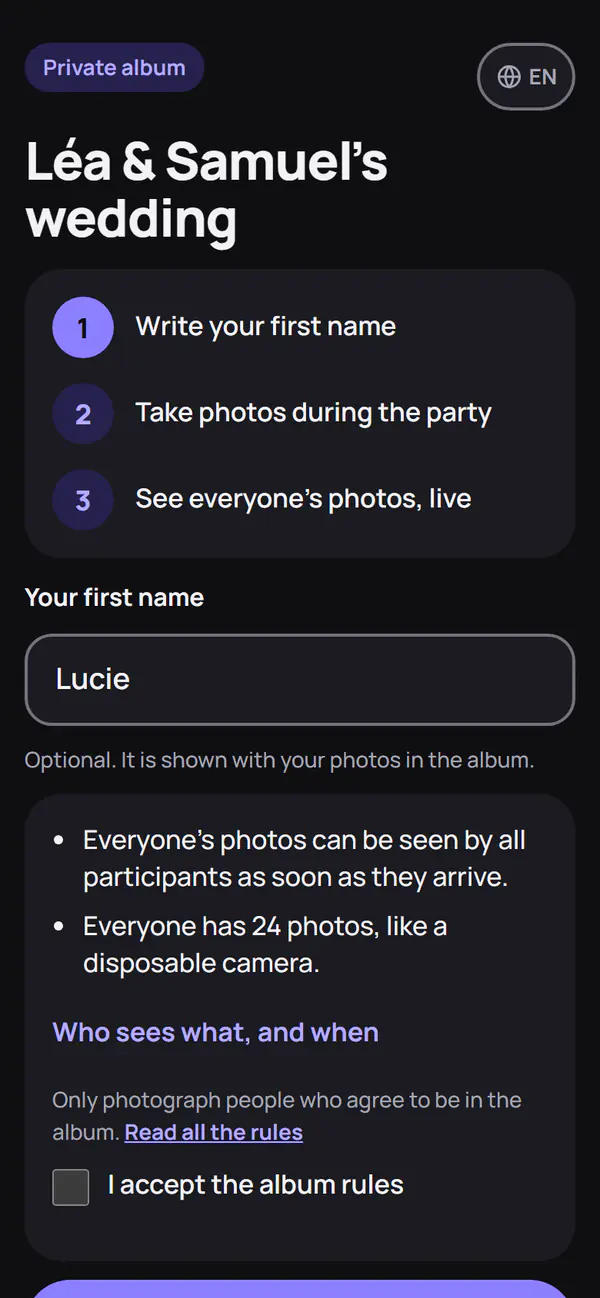
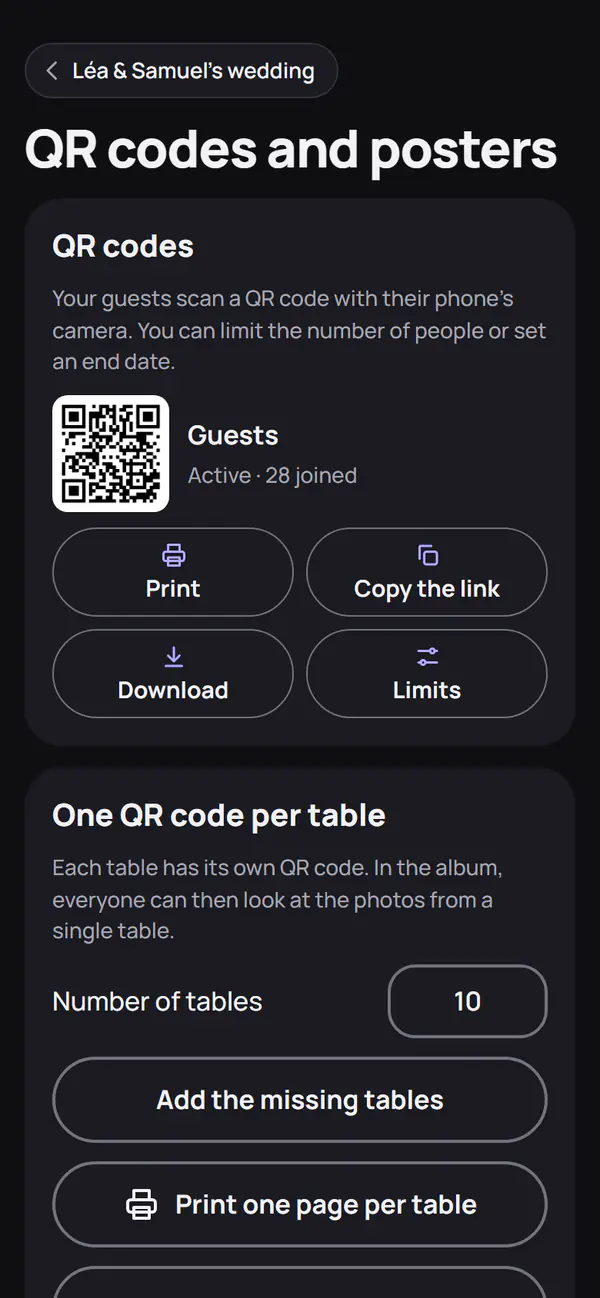
- print the A4 poster or the A6 table card with the QR code;
- if you like, prepare photo challenges, switch on the voice or written guestbook, show the photo wall on the screen in the room.
You can also create one QR code per table, limited in time or in number of people, and give a moderator QR code to a witness, who checks photos before they become visible. The full list is on the Features page.
Who sees what, and when
Festiroll offers three sets of rules:
- Disposable camera: 24 photos per guest (adjustable from 1 to 99), revealed together at the chosen time;
- Live: everyone sees the others' photos as soon as they arrive;
- Surprise: no photo limit, revealed together at the chosen time.
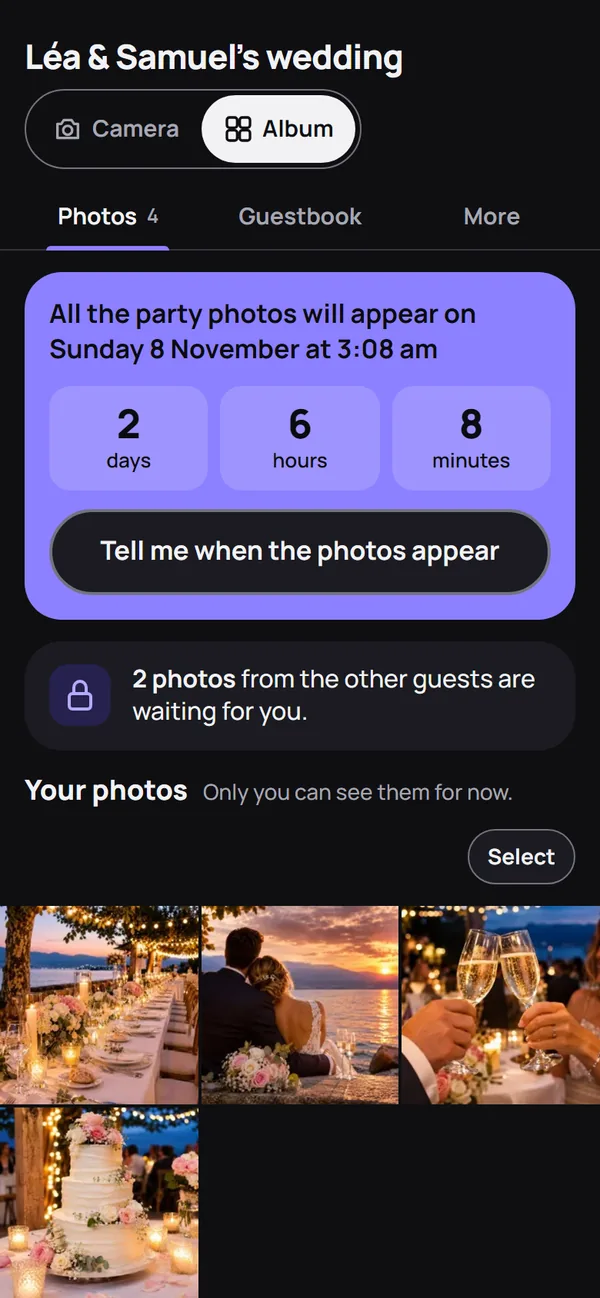
Before the reveal, each guest sees only their own photos. Other people's photos are not sent to phones, not even as thumbnails. By default, the couple see the album at the same time as their guests. Everyone accepts the rules before their first photo; they are published on the Album rules page.
After the reveal: viewing the album
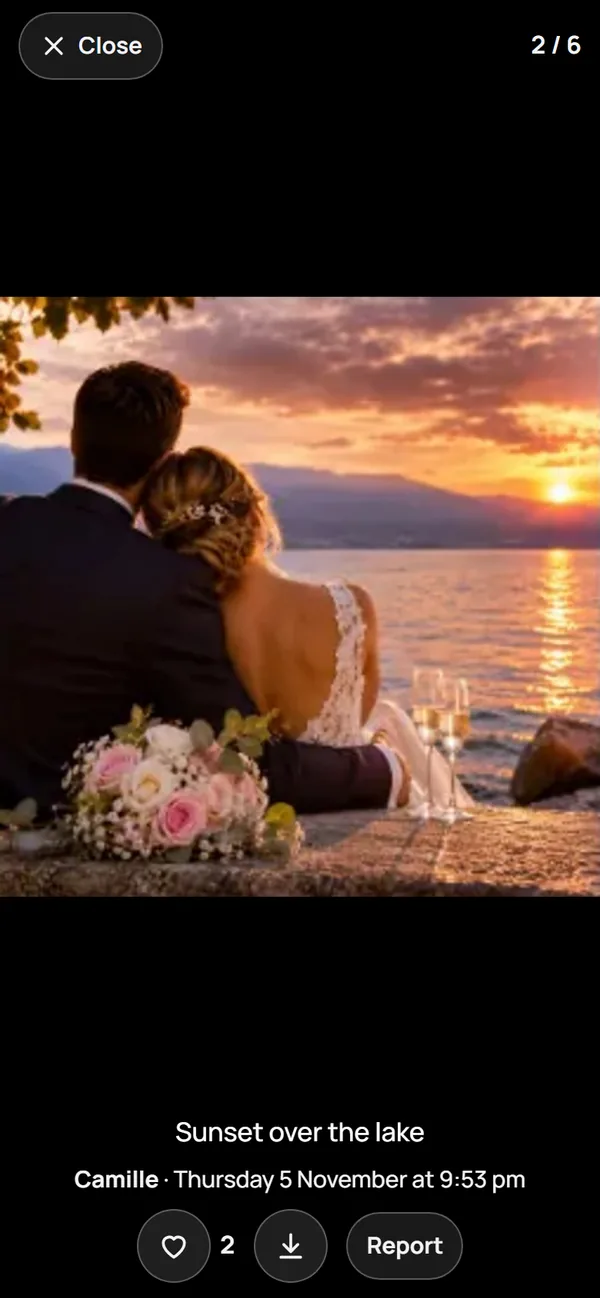
At the chosen time, each guest reopens the album on the phone they took part with: through the QR code, the home-screen icon, or the “The photos can now be seen!” email if they left their address. The album opens on every photo; tap one to see it full screen, add it to your favourites, or download it if you allow it. You tap “See the album” in your space.
The full walkthrough, with filters and the guestbook: View the album.
Practical questions: signal, how many QR codes, where to put them
What if the signal is poor in the venue? A photo is only marked “sent” once it has arrived. Without a signal, it waits on the phone and is sent when the guest reopens the album with a connection. Guest Wi-Fi still helps.
How many QR codes should I print? One per table, or a single poster at the entrance for a small party. With one code per table, the album can then be filtered by table.
What about guests without a smartphone? They can't take photos for the album, but they can see the wall in the room, and you can send them a sharing link, with no account.
Someone doesn't want to be in a photo? They report it from the album, it is hidden immediately, and the couple decide. Someone without the QR code can also request a removal.
Limits to be aware of
- No video, photos only.
- The album depends on guests' phones: it doesn't replace the photographer or a booth that prints on site.
- You need to announce it, or some guests won't notice it.
For paper prints during the evening, a photo booth and the album work well together. The difference is explained on the Photo booth page.
What it costs
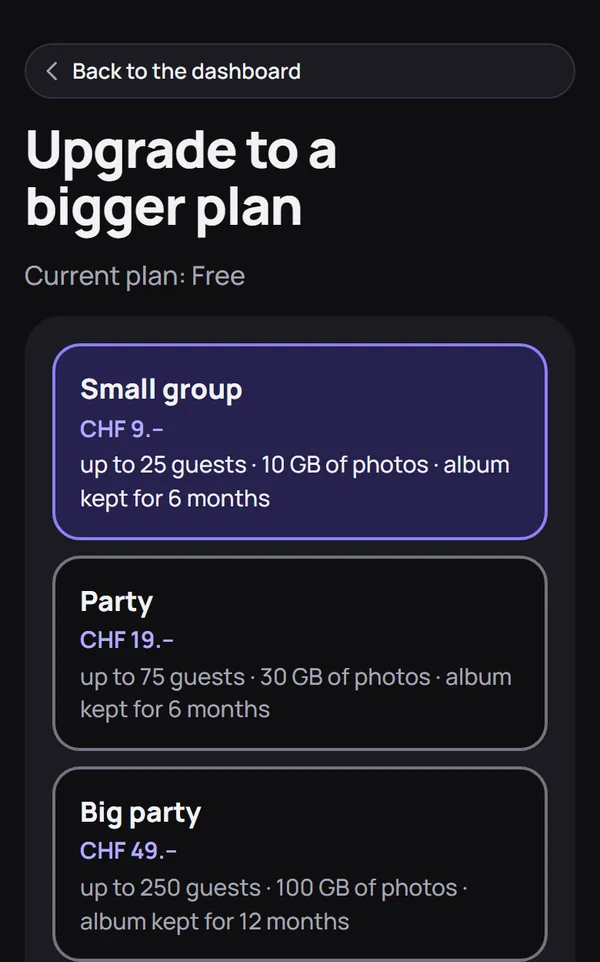
The album is free for up to 10 guests, enough to try it with a few friends before the wedding. Beyond that, a single price per event, paid once, no subscription: from CHF 9.– to CHF 49.–. The Big party plan takes up to 250 guests. The plans are set out on the prices page.
See also: how to collect all your guests' photos, or the Wedding page to see the album in pictures.