
View the album: see the photos after the reveal
Updated on 5 November 2026
In short
After the reveal, the album opens on the Album tab: every visible photo, in a grid. A guest reopens it on the phone they joined the party with, from the “The photos can now be seen!” email, the home-screen icon or the guest QR code. The organiser taps “See the album” in their space. Before the reveal, everyone sees only their own photos.
When the album opens
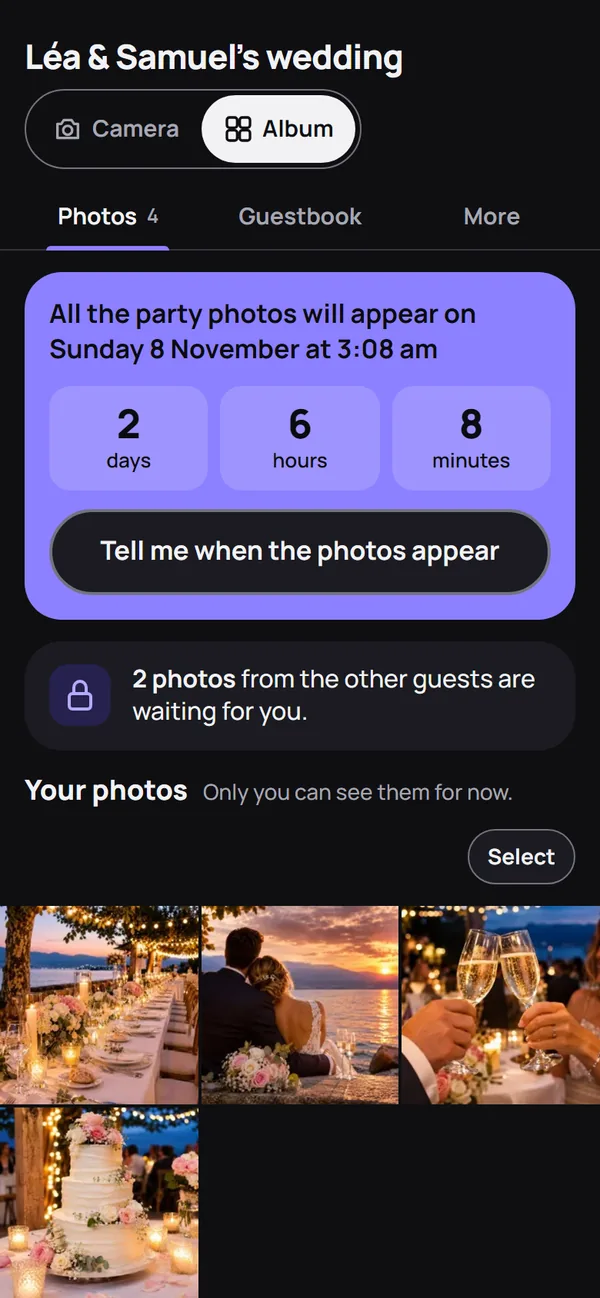
Until the date chosen by the organiser, the Album tab shows a countdown and only your own photos, under the title “Your photos”. Other people's photos reach no phone, not even as a thumbnail: the server issues no link to them before the time. At the set time, the page reloads by itself. In Live mode, the album is open from the start.
As a guest: reopen the album
Use the phone you joined the party with: a cookie recognises it, with no account. Three ways lead there:
- the “See the album” button in the “The photos can now be seen!” email, if you left your address;
- the album icon on the home screen, if you added it;
- the guest QR code or its link: the phone is recognised and keeps its photos.
After the reveal, or once photo taking has ended, the album opens on the Album tab. Otherwise, tap Album at the top of the screen; Camera takes you back to the camera.
Browse the photos, open a photo full screen
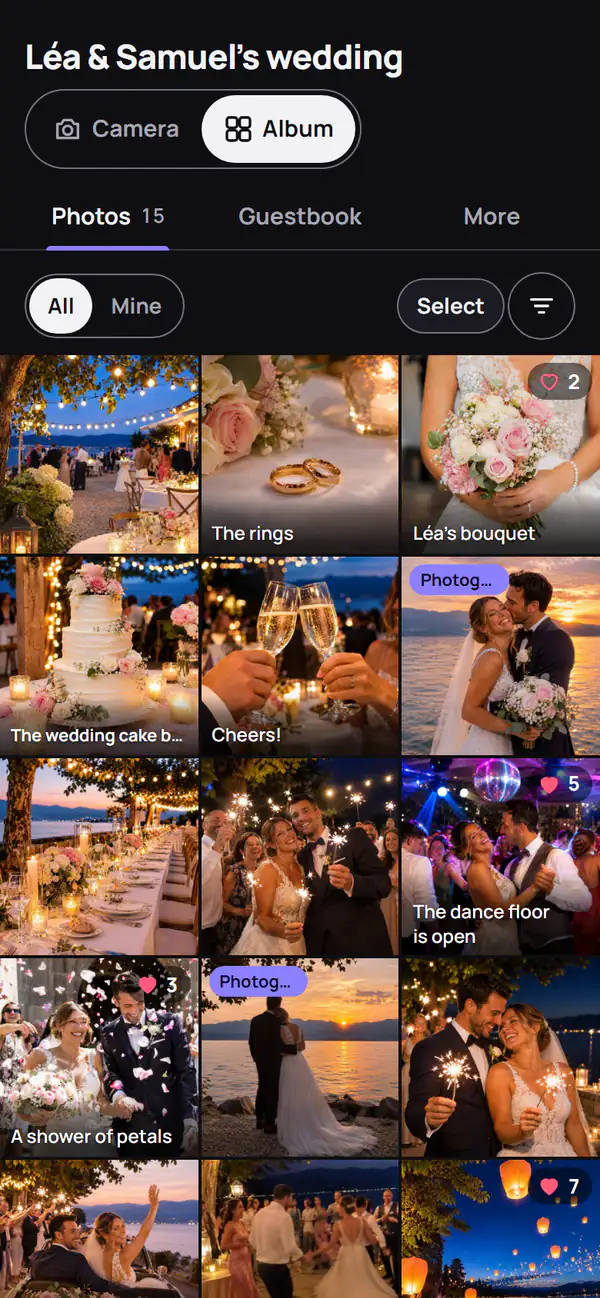
The grid shows the photos in order, and more load as you scroll. All shows the whole album, Mine only your photos; the photographer's carry the “Photographer” label.
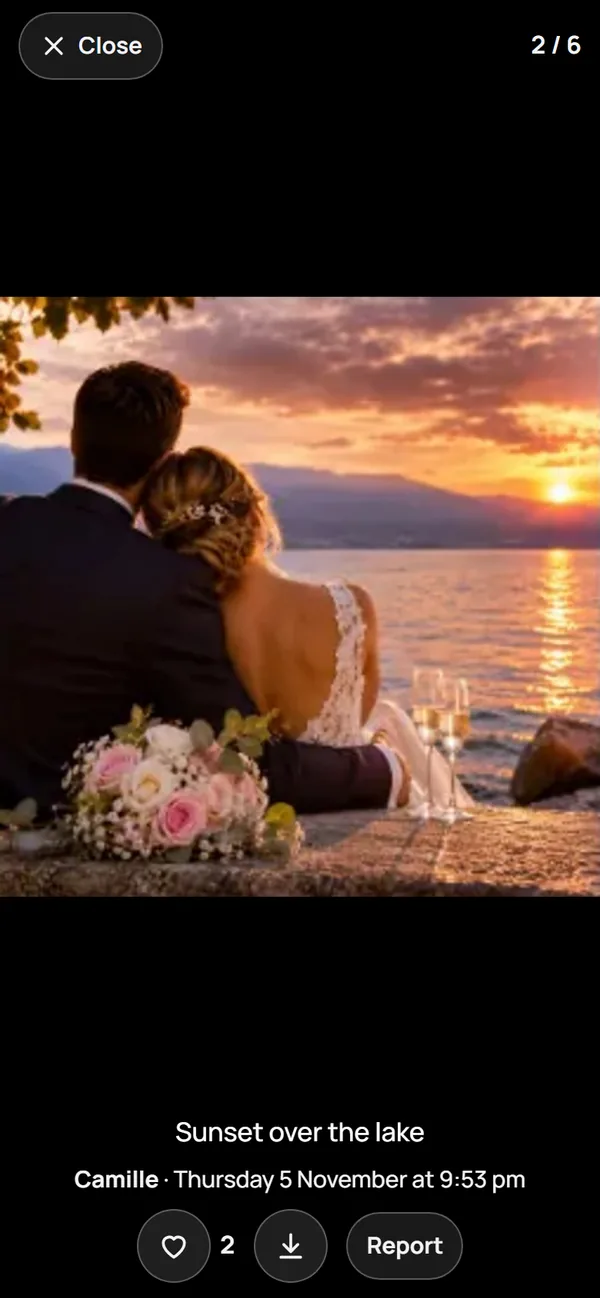
Tap a photo to open it full screen. A swipe, or Next, moves to the next one; a double tap zooms in. Under the photo: its author, the time, its caption and, depending on the settings:
- the heart, for your favourites;
- the download of the photo, in full quality;
- Report, to ask for its removal;
- Add a caption, under your own photos.
Sort and filter
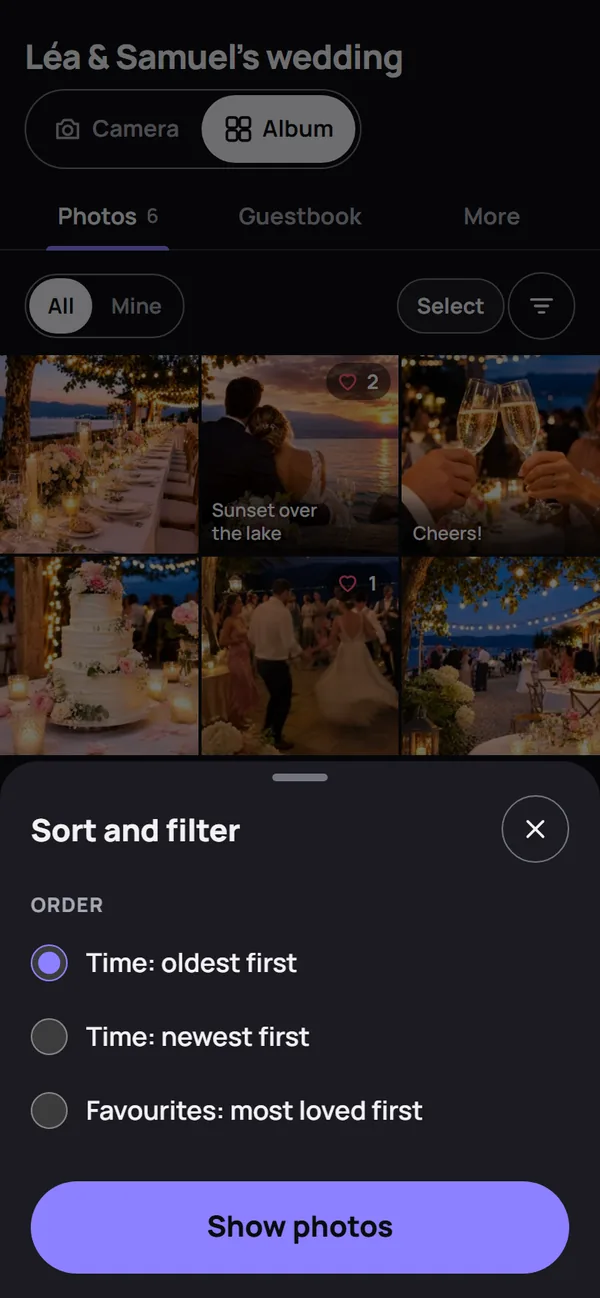
The round button to the right of All and Mine opens “Sort and filter”:
- the order: oldest, newest or most loved first;
- the photographer's photos, and one of their deliveries;
- a table, if the album has a QR code per table;
- a photo challenge.
Each active filter appears above the grid, with a cross to remove it. Nobody sees who liked which photo.
Download, guestbook
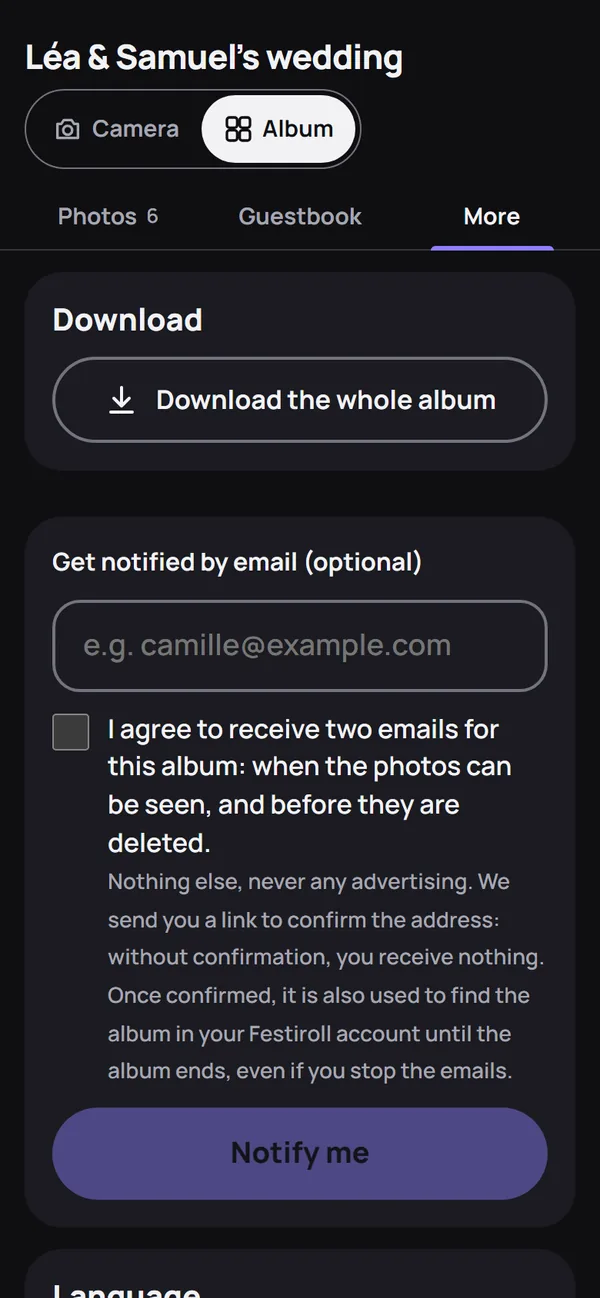
The More section offers “Download the whole album”, a ZIP file of the visible photos, if the organiser allows guests to download (Download and storage). The Guestbook section shows the written and spoken messages, revealed with the album.
As the organiser: “See the album”
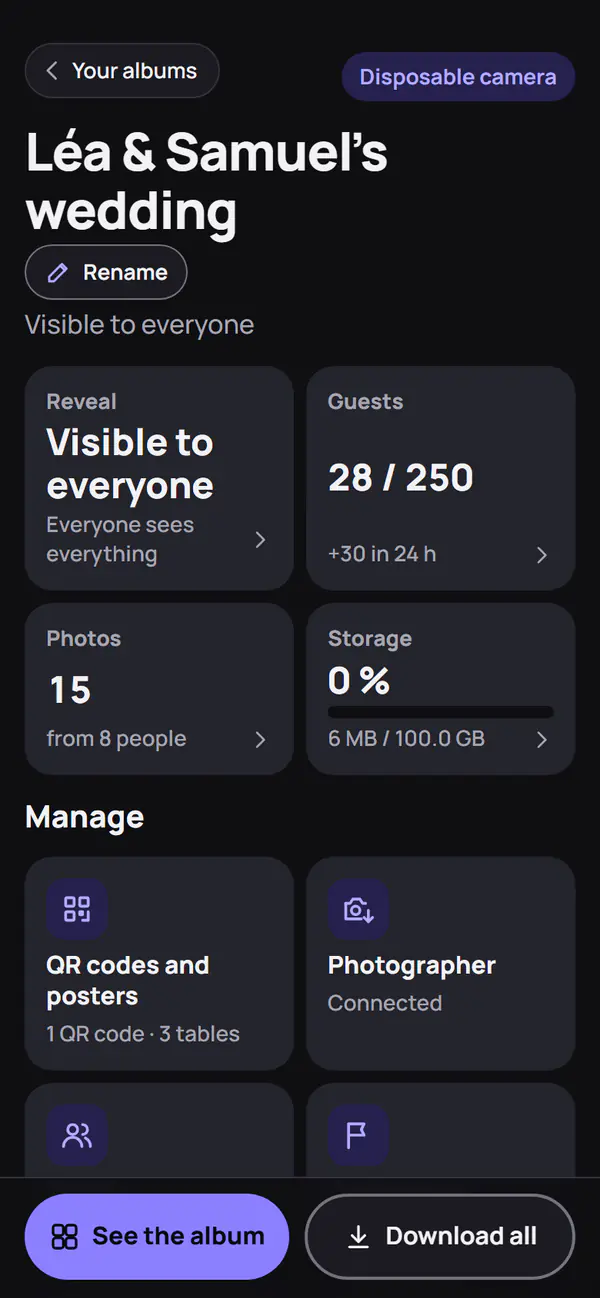
In your organiser space, open the album. After the reveal, the bar at the bottom of the screen offers See the album and Download all. The first time on a phone, accept the album rules: this phone becomes a moderator and the album opens, with the moderation actions. Manage album, at the top of the album, takes you back to your space.
In the 30 days before deletion, the bar offers Extend; the See the album tile, under Manage, keeps access.
Moderators, photographer, absent family
- Moderators come in with the moderator QR code and see the photos at their date.
- The photographer switches from their Studio to the Album tab; they see the guests' photos at their date and only touch their own photos (Studio and deliveries).
- Absent family receive a sharing link, with no account: the album in read-only mode. It does not exist when children are present (Invite with a QR code).
Frequently asked questions
Can I see the album on another phone?
Yes. With the guest QR code, the other phone joins as an extra guest, and “Mine” stays empty there. To move your photos to it, leave your email address in the album, then tap “Open on this phone” under “My albums” in your Festiroll account; the old phone loses access.
I only see my own photos. Why?
The reveal has not happened yet: the countdown says when. Once it has, choose All rather than Mine, and remove any filter above the grid.